View and Choose Add-Ons to Booked Reservations
Stay allows users to view the count of add-ons added to a reservation and choose new add-ons to be included from the Reservation Summary section of the reservations.
Feature Setting
The following feature setting must be enabled to use this feature:
-
Name: Enhanced Add-Ons
-
Value: Must be enabled
-
Comments: License is not required
When the feature setting is enabled, users can view the count of the add-ons added to a reservation from the AON badge present on the Reservation Summary section of the reservation.
-
This badge is highlighted in yellow when add-ons are added to the reservation. When the AON badge is enabled, users can modify the add-ons, provided the status of the reservation is in Reserved or In-House.
-
This badge is disabled when there are no add-ons associated to the reservations in Departed/Cancelled/No-Show status. The badge will be enabled when there are add-ons associated with the reservations in Departed/Cancelled/No-Show status. Users cannot modify the add-ons for the reservations in the Departed/Cancelled/No-Show statuses.
Based on the number of add-ons added to the reservation, the add-ons count is increased in the AON badge. The count is displayed in a bubble on top of the AON badge. This count includes both the individual and package add-ons added to the reservation. Each individual add-on added to the reservation is added to the count. If the same add-on is added twice, the count is increased to 2. The add-ons added as a package are counted together as 1.
When reservations are created via OTAs and third-party sources with recurring charges, the recurring charges are considered as add-ons and are added to the count displayed on the AON badge.
When users click the AON badge, the Add-Ons screen is displayed with the following details:
|
Field |
Description |
|---|---|
|
Choose Add-Ons |
|
|
Component |
|
|
Quantity |
Displays the quantity of the add-ons selected for the reservation. |
|
Charge |
|
|
Tax |
Displays the tax amount for the components. |
|
Overall |
Displays the overall charges for the components, that is, Charge +Tax. |
Users can remove the individual add-ons, update the quantity of the add-ons, or the components added as a part of a package in the Add-Ons screen.
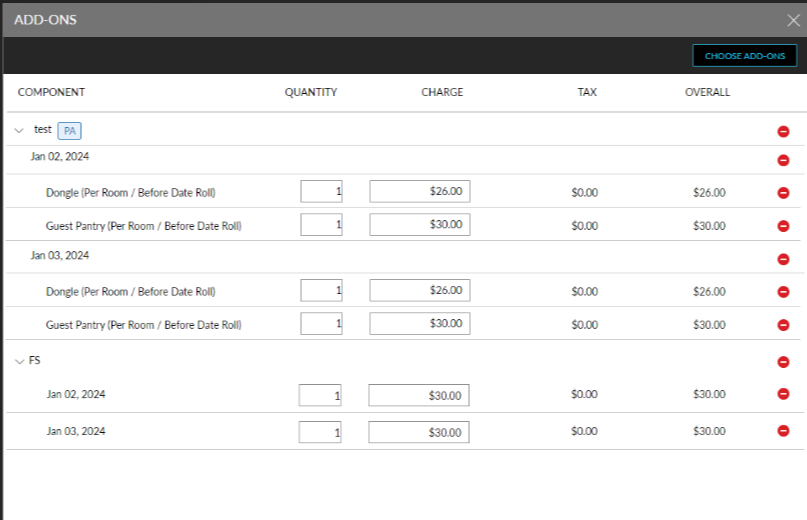
When users update the quantity of the add-ons, the Adjust Rate pop-up screen appears that allows users to modify the quantity and the rate for the add-on. Users cannot update the Quantity as 0, negative, or decimal values. The modified quantity can be applied for the following options:
-
Apply rate to remaining rates: When selected, the modified quantity will be applied to the remaining dates of the respective reservation.
-
Apply rate to specific dates: When selected, the modified quantity will be applied to the specific dates of the reservation.
When an inventory item configured with a Limit or Max Allowed Per Reservation value is added as an individual add-on to a reservation and modified, the following message is displayed when the modified quantity exceeds the available limit: Entered value exceeds the inventory. When the modified quantity exceeds the Max Allowed Per Reservation value, the following message is displayed: Entered value exceeds reservation limit.
When users click Save, the Authorize Action pop-up screen appears that allows users to select the applicable override option, enter the credentials, and click Save.
The credentials of the user are validated, and the following message is displayed when the user does not have the necessary permission to override: User does not have the required permission. When the user does not have the required permission to Override the exceeded inventory, the following message is displayed: User does not have the required permission to override the exceeded inventory. When the user does not have the required permission to Override for maximum allowed per reservation, the following message is displayed: User does not have the required permission to override for maximum allowed per reservation. When users select the No Override option, only the available/allocated item is added to the reservation.
When the user has the required permission, the quantity of the add-on will be updated successfully. When the quantity is updated, the Charge, Tax, and Overall values are updated accordingly in the Add-Ons screen.